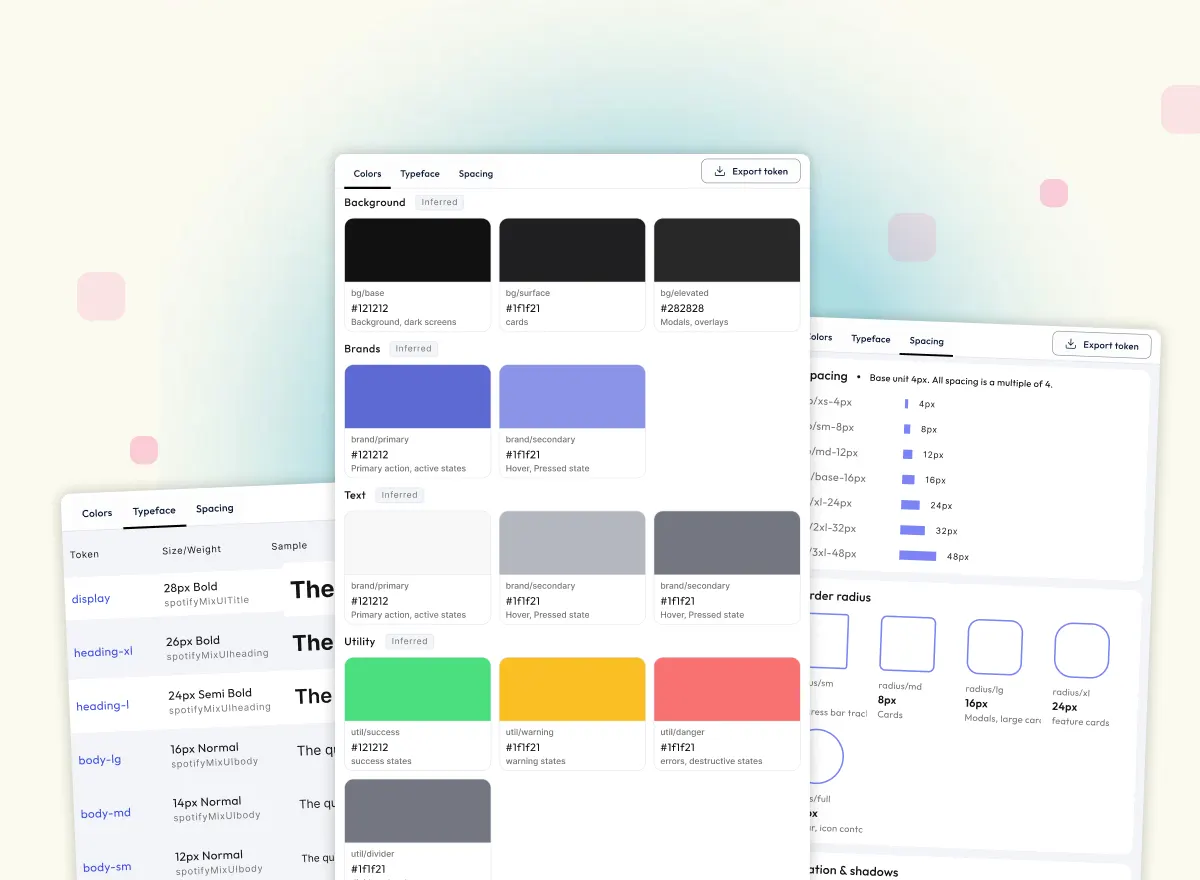
Problem with recreating UIs from websites using inspected code
Comparing ChatGPT vs Trace UI to recreate Claude AI's CTA card from inspect code. Why raw inspect code fails and how computed styles solve it.

I tried recreating UI component from Claude's webpage into usable react and HTML code using ChatGPT vs Trace UI and compared the results. The results were pretty interesting.
So the main premise of taking inspiration from these famous well known websites is that millions of people use them. Airbnb gets around 3 to 6 million visits daily, Spotify around 28 to 30 millions. Claude AI website alone gets around 30 to 40 million visits daily (averaging over 1 billion monthly visits). This number talks volume about something they are great at like clear messaging, usability, flow, UI and UX etc. Every component on these websites has been through multiple design reviews, usability testing, and real-world use therefore its very obvious and make sense to analyse and learn from these brands who have mastered them and are already battle tested.
Why reinvent the wheel, when you can customise them according to your design language and use them?
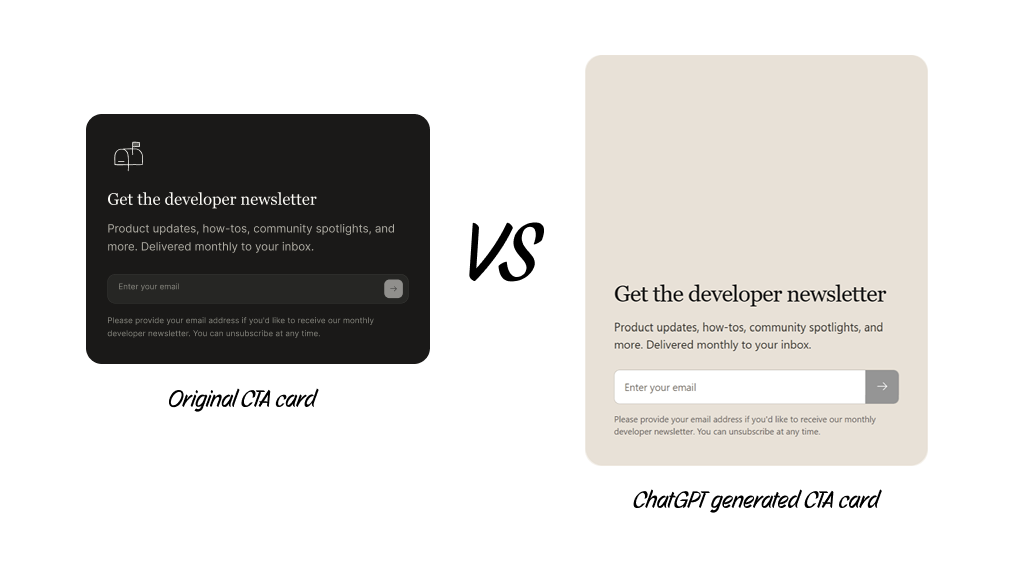
So in this demo I picked a beautiful CTA card from Claude code webpage and tried recreating it with two methods. First using ChatGPT with the inspect code of the CTA card taken directly from the webpage.
Method 1: Inspect webpage code, copy and paste into ChatGPT
This is what most of us do. Inspect the elements, right-click, copy the computer generated code, and paste it into coding agents like claude, ChatGPT, gemini etc. for this I used ChatGPT. I pasted the code in the chat. The code itself was huge as it contained lottie animation icon. After pasting in the promt box I provided the provided the prompt -
"Recreate this ui component in html/css. I want the us exactly as is".
It took a while to work through it the 100s of line of code. The result it generated comes out to be completed different even though I explicitly mentioned to keep the ui as is. The text field was different. The buttons were different. The font color was different. The lottie icon was skipped entirely. Even the layout and colors as if it completed missed the css properties. Looking closely at the extracted code from the webpage I found that the code contains custom css classes, therefore the css properties were completed missed as they were defined in a separate stylesheet file and ChatGPT only ever saw the HTML. The class names (like css-1x2y3z) were just labels with nothing behind them, so the model had no idea what colors, fonts, spacing, or layout. It filled the gaps by guessing, which is why the output looked like a generic version of the component rather than the original. Even the Lottie icon was dropped because of the similar reason as it's loaded from an external JSON file or script, so the pasted markup contained only an empty container.
Copying the HTML alone gives the AI the structure of the page untill it is made of inline tailwind classes. So inorder to get the exact output, one needs to also provide the CSS (or the computed styles) along with other files like lottie animation files, which is what the next method tries to solve.
Method 2: Using Trace UI browser extension
Then I tried the same component with Trace UI. I clicked the extension, selected the element, and got a preview before generating anything.
Trace UI doesn't hand the AI the site's messy source. It reads what the browser actually rendered, then cleans up the computer-generated code into something usable. There's also an optional prompt box for anything you want included, but I left it blank because I wanted the exact component.
The result was very close to the real thing, and it took about two clicks.

From reference to your own project
Getting a copy isn't the point. Once the component is in your library, you can:
- Change the text color, border radius, and other tokens to match your design system
- Copy the finished code straight into your project
- Grab the icon separately as an SVG
- Copy the HTML
You end up with something that started as a proven pattern and finished as your own.
The takeaway
The AI wasn't the weak link in that first experiment. The input was. When you give a model noisy code full of framework hashes, you get a guess back. When you give it clean, resolved values, you get something you can actually ship.